| Scenario | Forela's domain controller is under attack. The Domain Administrator account is believed to be compromised, and it is suspected that the threat actor dumped the NTDS.dit database on the DC. We just received an alert of vssadmin being used on the DC, since this is not part of the routine schedule we have good reason to believe that the attacker abused this LOLBIN utility to get the Domain environment's crown jewel. Perform some analysis on provided artifacts for a quick triage and if possible kick the attacker as early as possible. |
| Files | Microsoft-Windows-NTFS.evtx, SECURITY.evtx, SYSTEM.evtx, C/$MFT |
| Support source | IppSec: Analyzing Event Logs and MFT Dump with Chainsaw - HTB Sherlocks - CrownJewel-1 |

Previous Steps
1. Convert the .evtx files to JSON format so that they can be worked with.
- In my case, I used the tool `Chainsaw`.
- To use this tool, we need to navigate to the directory where our .evtx files are located and run this command (I placed Chainsaw in /opt).
/opt/chainsaw/chainsaw dump *.evtx --json > events.json 2. Have the jq tool available to query JSON files
- With `jq` we can extract specific information from JSON by applying different filters.
- Using this tool we will can query our JSON in a nested way. For example, with this file named `product.json`:
{"product":
	{
	"productID": 101,
	"productName": "Wireless Mouse",
	"dimensions": {
		"width": "2.5 inches",
		"height": "1.5 inches",
		"depth": "4 inches"
		}
	}
} - If we want to access of the `depth` field value we will have to use a command like this:
cat product.json | jq '.product.dimensions.depth' or
cat product.json | jq '.product | .dimensions.depth' - And that command will return the value: "4 inches".
- For more info: `Guide to Linux jq Command for JSON Processing`.
3. Create text files for each .evtx file, listing all the triggered events.
- This helps us to have an overview of what events have been triggered, their descriptions, and how many times they have occurred.
- To do this, we will retrieve the EventID, corresponding to each `.evtx` file, from our `events.json` and make a quick request to `ChatGPT` to get the data we need in this format:
- `EventID: Description - Number of times it occurs`
- We can retrieve the events using this command, replacing the value of `.System.Channel` in each case with "Microsoft-Windows-Ntfs/Operational", "System" and "Security":
cat events.json | jq '.[].Event | select(.System.Channel == "Microsoft-Windows-Ntfs/Operational") | .System.EventID'|sort |uniq -c | awk '{print $2":"$1}'|sort -n These are the .txt events files I have used
ntfs.txt:
Event 4 - File system volume mounted - 23
Event 9 - Volume status change - 25
Event 10 - File system error - 25
Event 142 - Error during NTFS operation - 35
Event 158 - Volume dismounted - 16
Event 159 - Volume mounted with errors - 2
Event 300 - File system repair started - 1
Event 301 - File system repair completed - 1
Event 302 - Volume failed integrity check - 1
Event 303 - NTFS metadata corruption - 1
Event 500 - NTFS driver error - 2
security.txt:
Event 521 - Logon attempt failed - 1
Event 1101 - Audit log cleared - 1
Event 4616 - Time zone change detected - 1
Event 4662 - Object access operation performed - 11
Event 4688 - New process created - 12
Event 4696 - Audit policy change - 1
Event 4698 - User account expiration set - 1
Event 4699 - User account expiration removed - 1
Event 4700 - Audit policy set - 1
Event 4701 - Audit policy removed - 2
Event 4702 - Account lockout policy set - 16
Event 4742 - Account logon restriction change - 1
Event 4768 - Kerberos authentication ticket requested - 9
Event 4769 - Kerberos service ticket requested - 17
Event 4799 - A security-enabled local group membership was enumerated - 21
Event 4826 - User rights assignment modified - 1
Event 5140 - Network share accessed - 4
Event 5142 - Network share permission change - 6
Event 5379 - Group membership change - 19
system.txt:
Event 1: System Boot - Occurs 1 time
Event 3: Application Error - Occurs 2 times
Event 6: Service Error - Occurs 11 times
Event 12: Network Error - Occurs 2 times
Event 14: Network Connection Error - Occurs 1 time
Event 15: File System Error - Occurs 1 time
Event 16: Hardware or Driver Error - Occurs 12 times
Event 18: Operating System Error - Occurs 1 time
Event 20: System Event Warning - Occurs 2 times
Event 24: Service Start Error - Occurs 1 time
Event 25: System Component Error - Occurs 1 time
Event 27: Configuration Error - Occurs 1 time
Event 32: Security Warning - Occurs 2 times
Event 41: Unexpected Shutdown - Occurs 1 time
Event 55: Disk/Filesystem Error - Occurs 8 times
Event 98: Network System Error - Occurs 2 times
Event 129: Disk Drive Error - Occurs 1 time
Event 139: Network Service Error - Occurs 1 time
Event 143: Port/Device Error - Occurs 1 time
Event 153: System Configuration Error - Occurs 1 time
Event 162: OS Warning - Occurs 1 time
Event 172: Critical System Error - Occurs 1 time
Event 238: Hardware Warning - Occurs 1 time
Event 1001: Application Start Error - Occurs 1 time
Event 1014: Network/DNS Issue - Occurs 2 times
Event 6005: Event Log Service Started - Occurs 1 time
Event 6008: Unexpected Shutdown - Occurs 1 time
Event 6009: System Boot Information - Occurs 1 time
Event 6013: Uptime Information - Occurs 1 time
Event 7001: Service Dependency Error - Occurs 1 time
Event 7026: Driver Load Error - Occurs 1 time
Event 7036: Service State Change - Occurs 106 times
Event 7040: Service Configuration Change - Occurs 1 time
Event 10016: COM Permission Error - Occurs 1 time
Event 10148: Device Error - Occurs 1 time
Event 10154: Network Service Error - Occurs 1 time
Event 14531: Network Management Error - Occurs 1 time
Event 14533: Network Communication Error - Occurs 1 time
Event 16962: Power Management Error - Occurs 1 time
Event 16977: Device Driver Warning - Occurs 2 times
Event 16983: Device Management Error - Occurs 1 time
Event 50036: OS Error - Occurs 2 times
Event 50103: System Configuration Error - Occurs 1 time
Event 51046: Service Start Issue - Occurs 1 time
Tasks
Task 1. Attackers can abuse the vssadmin utility to create volume shadow snapshots and then extract sensitive files like NTDS.dit to bypass security mechanisms. Identify the time when the Volume Shadow Copy service entered a running state.
Hint
- No hint for this question.
Answer
- 2024-05-14 03:42:16
-
The events related to the services are located in
SYSTEM.evtx, so we will search in oursystem.txtto see if any of the events are related to the state changes of a service. -
We see that the description of event
7036saysService State Change, which seems to be the event we are looking for.
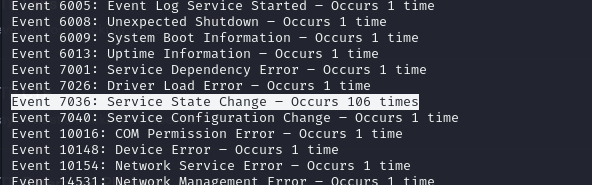
- Sice it occurs 106 times, we must filter by
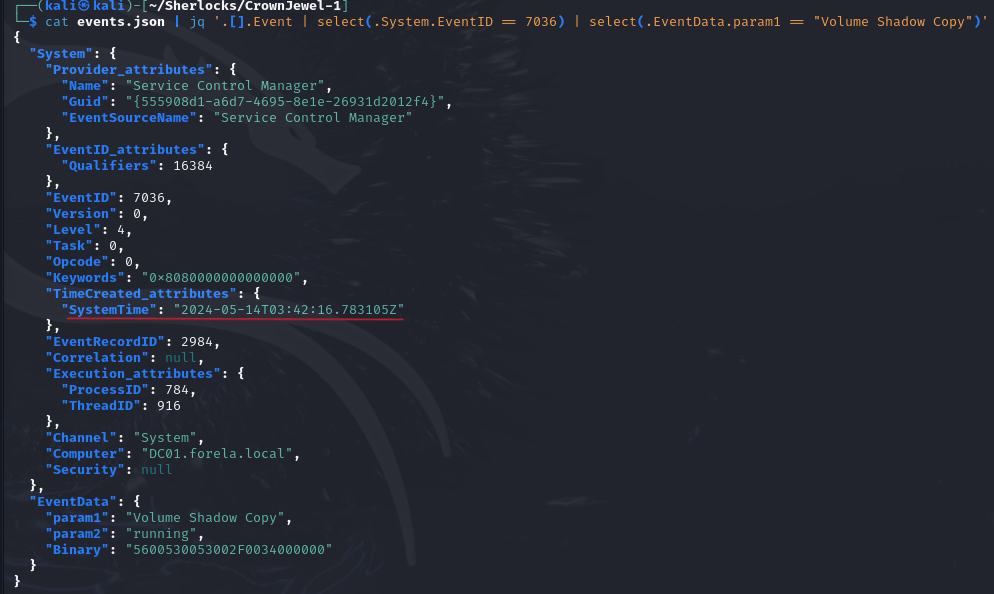
Volume Shadow Copyin the field that indicates the service name, which in this case is.EventData.param1. To do this, we run this command:
cat events.json | jq '.[].Event | select(.System.EventID == 7036) | select(.EventData.param1 == "Volume Shadow Copy")' - As a result, we will obtain the event we are looking for. Our answer is in the field
.System.TimeCreated_attributes.SystemTime.
Task 2. When a volume shadow snapshot is created, the Volume shadow copy service validates the privileges using the Machine account and enumerates User groups. Find the two user groups the volume shadow copy process queries and the machine account that did it.
Hint
- No hint for this question.
Answer
- Administrators, Backup Operators, DC01$
- The events related to security, such as privilege validation, can be found in
SECURITY.evtx, so we will look in oursecurity.txt.
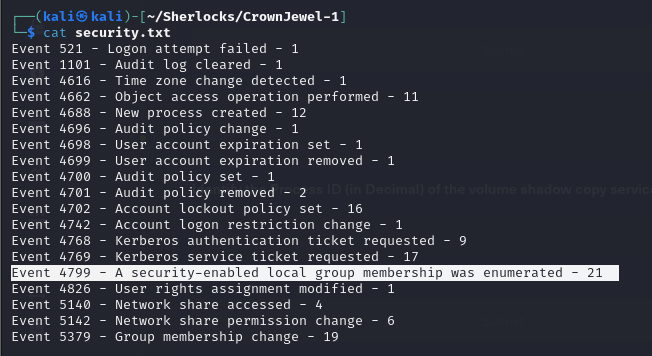
- In this file we can see that event
4799lists members of the local group. We will filter for that event when it is executed by the VSS process.
cat events.json | jq '.[].Event | select(.System.EventID == 4799) | select(.EventData.CallerProcessName == "C:\\Windows\\System32\\VSSVC.exe")' - We find different groups listed in the
.EventData.TargetUserNamefield and the machine account in.EventData.SubjectUserName.
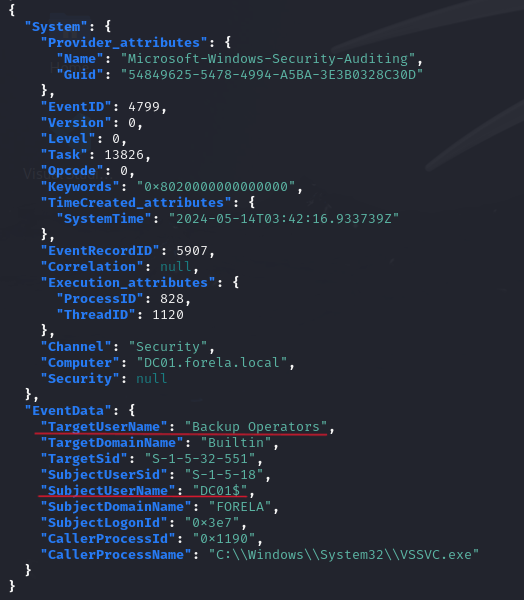
- First, let’s go to the user groups. We can retrieve the values from the
.EventData.TargetUserNamefield and remove duplicates:
cat events.json | jq '.[].Event | select(.System.EventID == 4799) | select(.EventData.CallerProcessName == "C:\\Windows\\System32\\VSSVC.exe") | .EventData.TargetUserName'|sort -u -
It returns the two groups we need:
AdministratorsandBackup Operators. First part completed, now let’s move on to the second. -
Just like before, we can retrieve the values for the field
EventData.SubjectUserNameand remove duplicates:
cat events.json | jq '.[].Event | select(.System.EventID == 4799) | select(.EventData.CallerProcessName == "C:\\Windows\\System32\\VSSVC.exe") | .EventData.SubjectUserName'|sort -u - The result it returns is
DC01$. We now have the complete answer.
Task 3. Identify the Process ID (in Decimal) of the volume shadow copy service process.
Hint
- No hint for this question.
Answer
- 4496
-
The number is in hexadecimal in the
.EventData.CallerProcessIdfield for.EventData.CallerProcessName == C:\\Windows\\System32\\VSSVC.exe:0x1190
-
We use python to convert that value into decimal:
python - We paste the value and press enter. It will return us the Process ID in decimal.
4496

Task 4. Find the assigned Volume ID/GUID value to the Shadow copy snapshot when it was mounted.
Hint
- No hint for this question.
Answer
- {06c4a997-cca8-11ed-a90f-000c295644f9}
- The events related to files and volumes are located in
NTFS.evtx, so we will check ourntfs.txt.
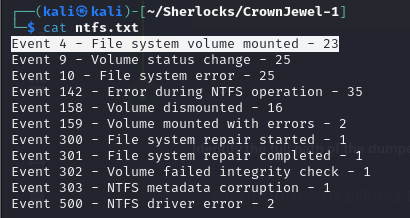
- The event
4has the descriptionFile system volume mounted. We will filter by thatEventID:
cat events.json | jq '.[].Event | select(.System.EventID == 4)' - The command returns a series of events, and we can see that the last one is related to
Volume Shadow Copy.
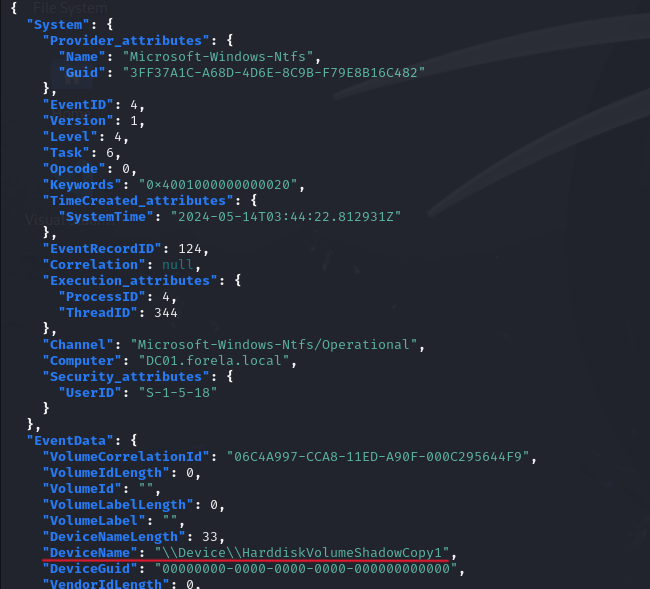
- To ensure that there are no more events with
.EventData.DeviceName = "\\Device\\HarddiskVolumeShadowCopy1", we can retrieve the value of.EventData.VolumeCorrelationIdfor thatDeviceName, which is the field they are asking about, and remove the duplicates.
cat events.json | jq '.[].Event | select(.EventData.DeviceName == "\\Device\\HarddiskVolumeShadowCopy1")| .EventData.VolumeCorrelationId' |sort -u - This command will return a single
VolumeCorrelationIdconfirming that it is the one we are looking for.
Task 5. Identify the full path of the dumped NTDS database on disk.
Hint
- No hint for this question.
Answer
- C:\Users\Administrator\Documents\backup_sync_Dc\Ntds.dit
-
The $MFT file acts as a database that contains information about all the files and directories on an NTFS partition. That is where we will find our answer.
-
We need to convert this file to a format we can work with, so we will use
Chainsawagain to create a JSON. -
First, we must move to
Cfolder and rename the file to avoid usign the dollar symbol$:
mv $MFT mtf.bin - Then we convert the file to JSON format using
Chainsaw:
/opt/chainsaw/chainsaw dump mft.bin --json > files.json - Now that we have a format which we can work with, we filter by
ntds.dit:
cat files.json | grep -i ntds.dit 
- We now know the name of the field where the full path is stored,
.FullPath, so we will search for all entries that contain the textntds.ditin that field:
cat files.json | jq '.[] | select(.FullPath | test("ntds.dit")) | .FullPath' 
-
Of all the paths, the most suspicious one is
Users/Administrator/Documents/backup_sync_dc/ntds.ditfor several reasons:- At first glance, it doesn’t seem like a very secure location for a critical database like
ntds.dit. - It’s not the default location for the
ntds.ditdatabase; the default location isWindows/NTDS/ntds.dit. - The name of the directory
backup_sync_dcsuggests that an attacker is trying to back up something related to the Domain Controller (DC).
- At first glance, it doesn’t seem like a very secure location for a critical database like
-
That is our answer.
Task 6. When was newly dumped ntds.dit created on disk?
Hint
- No hint for this question.
Answer
- 2024-05-14 03:44:22
- This information is stored in the field
.StandardInfoCreated, and we can retrieve it with:
cat files.json | jq '.[] | select(.FullPath == "Users/Administrator/Documents/backup_sync_dc/ntds.dit") | .StandardInfoCreated' Task 7. A registry hive was also dumped alongside the NTDS database. Which registry hive was dumped and what is its file size in bytes?
Hint
- In the MFT results file, filter for the identified folder path where the attacker dumped the NTDS database. It will display any other file created on that path as well.
Answer
- SYSTEM, 17563648
-
The registry hives are usually files without an extension and can have names like
SYSTEM,SECURITY,SAM… -
If a registry hive was dumped along with the NTDS database, it may be located in the same directory
backup_sync_dc. -
We search for entries with that name, retrieving only the
.FullPathto see if any file looks like a hive:
cat files.json | jq '.[] | select(.FullPath | test("backup_sync_dc")) | .FullPath'|sort -u 
- Of all the results, the only one that looks like a hive is
"Users/Administrator/Documents/backup_sync_dc/SYSTEM". We access the file to see its information:
cat files.json | jq '.[] | select(.FullPath == "Users/Administrator/Documents/backup_sync_dc/SYSTEM")' 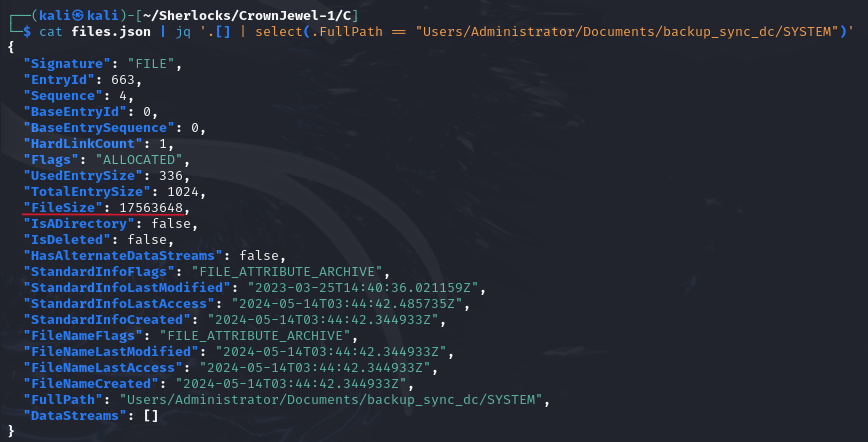
- The answer will be
SYSTEMand the file size can be found in.FileSize.
That's it!
